
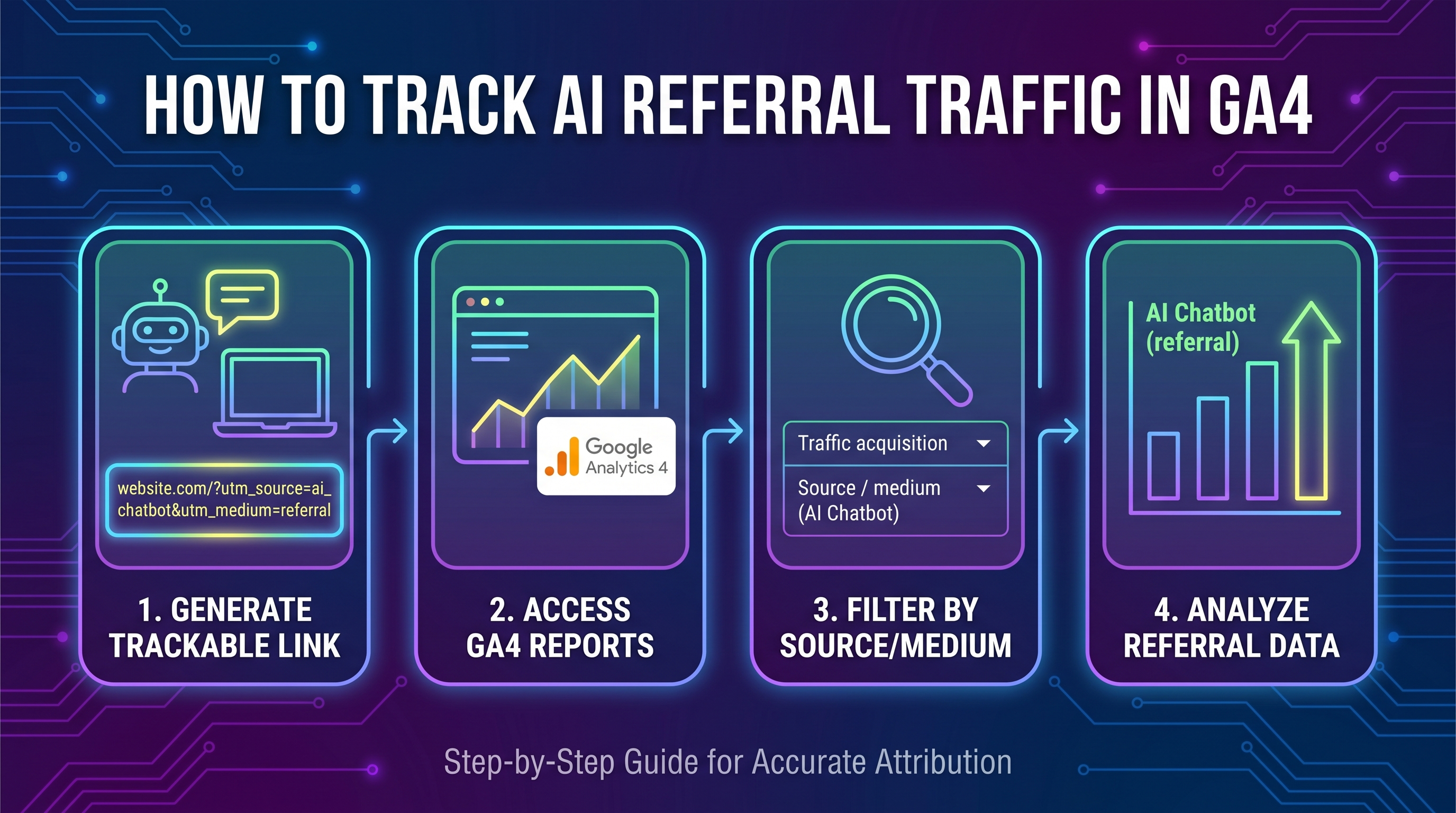
How to Track AI Referral Traffic in GA4 (Step by Step)
AI assistants like ChatGPT, Perplexity, Gemini, and Copilot have quietly become a real source of website visitors. Someone asks a question, gets an answer with citations, and clicks through to your site. The catch? Google Analytics 4 wasn't built for this referral pattern, and by default it misses a big share of these sessions, dumping them into vague buckets like Direct or Unassigned.
To understand how to track AI referral traffic in GA4, you need two things: the native AI channel Google recently added, plus a custom regex-based channel group that catches what the default rules leave behind. This guide covers both, step by step.
Why GA4 Misses Most AI Referral Traffic
It helps to know why the problem happens before you fix it.
GA4 sorts traffic by referring domain and UTM parameters. AI referral traffic breaks several of those assumptions:
- No referrer is passed. Many AI apps, especially mobile and desktop clients, send visitors with no referrer at all, so GA4 files them under Direct.
- Referrers are inconsistent. ChatGPT alone sends traffic from chat.openai.com, chatgpt.com, and assorted link-wrapper domains.
- New tools appear constantly. Perplexity, Claude, Copilot, Gemini, and dozens of smaller assistants each use their own domains.
The upshot: GA4's out-of-the-box channel grouping can miss up to 70% of AI referral sessions. On sites where AI already drives meaningful traffic, some estimates run higher still.
Google responded by adding a native "AI" grouping, but it only recognizes a curated list of domains, and it doesn't backfill historical data. For the full picture, pair the native channel with your own custom logic.
Step 1: Confirm the Native AI Channel Is Active
Google rolled out a dedicated AI channel in the default channel group in 2025. Check whether yours shows it.
- In GA4, open Reports → Acquisition → Traffic acquisition.
- Set the primary dimension to Session default channel group.
- Look for a channel labelled AI (sometimes shown as Organic Shopping neighbours or under a new grouping depending on rollout).
If you see it, GA4 is already isolating some AI referrals. If not, your property may not have the update yet, which makes the custom setup below even more important.
Note: The native channel is read-only. You can't edit the domains it recognizes, so it will always undercount emerging tools.
Step 2: Explore the Raw Referrer Data
Before building custom rules, look at what's actually arriving. This confirms the domains you need to capture and turns up surprises.
- Go to Reports → Acquisition → Traffic acquisition.
- Change the primary dimension to Session source / medium.
- In the search box, test terms one at a time: chatgpt, openai, perplexity, gemini, copilot, claude, bing.
You'll typically find entries such as:
- chatgpt.com / referral
- chat.openai.com / referral
- perplexity.ai / referral
- gemini.google.com / referral
- copilot.microsoft.com / referral
- www.bing.com / referral (Copilot answers)
Note every AI-related source you find. This is the raw material for your regex.
Step 3: Build a Custom Channel Group
Custom channel groups let you define rules that override the defaults, without touching your raw data. It's the safest and most flexible approach.
- Click the Admin gear (bottom left).
- Under Data display, select Channel groups.
- Click Create new channel group.
- Give it a clear name, e.g. AI-Aware Channels.
GA4 pre-loads a copy of the default channels. You'll add a new channel at the top so it takes priority.
- Click Add new channel and name it AI Referral.
- Move it to the top of the list. Order matters here, since the first matching rule wins.
Step 4: Add the Regex Matching Rule
Inside your new AI Referral channel, define the condition. Use Source with the matches regex operator so you can capture many domains in one rule.
Set the condition to:
```
Source matches regex
```
And paste a pattern like this:
```
.(chatgpt|openai|perplexity|gemini\.google|bard\.google|copilot|bing\.com/chat|claude\.ai|anthropic|you\.com|poe\.com|phind|deepseek|mistral|meta\.ai).
```
A few notes on this pattern:
- The .* on each side means "match anywhere in the string."
- Backslashes escape the dots inside domain names.
- You can extend the list as new tools appear. Regex makes updates trivial.
- Keep the list focused. Adding bing.com alone would sweep in ordinary Bing search, so target bing.com/chat or rely on medium filtering.
Save the channel. Any session whose source matches will now be classified as AI Referral in this channel group.
Optional: Catch Referrerless AI Traffic with UTMs
Because many AI clients pass no referrer, the cleanest long-term fix is to encourage links that carry your own tracking. You can't control how AI tools link to you, but you can tag any AI content distribution you run yourself, for example links you place in a custom GPT or an assistant plugin, with UTMs such as:
```
?utm_source=chatgpt&utm_medium=ai_referral
```
Then add a second condition to your channel: Source/Medium matches regex for ai_referral. Now your own AI placements are always captured, even without a referrer.
Step 5: Apply and Verify the Channel Group
Custom channel groups don't show up everywhere automatically. Apply yours where you need it.
- Return to Reports → Acquisition → Traffic acquisition.
- Click the pencil/edit icon or use the dimension selector.
- Choose your AI-Aware Channels group as the primary dimension.
You should now see an AI Referral row larger than the native AI channel, because your regex captures more domains.
GA4 applies new channel groups going forward and, importantly, retroactively for the standard retention window, so you'll often see historical data reclassified within a day or two.
Step 6: Build an Exploration for Deeper Analysis
Reports work for monitoring, but Explorations let you slice AI traffic properly.
- Open Explore → Blank exploration.
- Add dimensions: Session source / medium, Landing page + query string, Session default channel group, and your custom channel group.
- Add metrics: Sessions, Engaged sessions, Engagement rate, Conversions, and Total revenue if you have ecommerce.
- Add a filter: your custom channel group exactly matches AI Referral.
Now you can answer the questions that actually matter:
- Which AI tools send the most visitors?
- Which landing pages get cited by AI?
- Do AI visitors convert better or worse than search visitors?
- Is AI traffic growing month over month?
Step 7: Set Up Ongoing Monitoring
AI referral patterns shift fast, so treat this as a living setup.
- Create a saved report or dashboard filtered to your AI Referral channel so stakeholders can see it at a glance.
- Review new sources monthly. Search Session source / medium for unfamiliar AI-related domains and add them to your regex.
- Watch the Direct channel. A sudden spike in Direct often signals AI tools sending referrerless traffic you haven't captured yet.
- Document your regex somewhere your team can find it, so updates don't get lost.
Common Mistakes to Avoid
A few pitfalls trip up people doing this for the first time.
Overly broad regex
Matching google or bing without qualifiers will pull normal organic search into your AI bucket. Always scope patterns to AI-specific subdomains or paths.
Editing the default channel group directly
Don't. Create a custom group instead. That keeps your default reporting intact and lets you experiment safely.
Forgetting rule order
GA4 evaluates channels top-down and stops at the first match. If your AI Referral channel sits below Referral, generic referral rules may claim the traffic first. Keep AI at the top.
Ignoring conversions
Session counts alone don't prove value. Always pair AI traffic volume with engagement and conversion metrics before drawing conclusions.
What Good AI Tracking Tells You
Once your setup runs, you'll start to see genuinely useful signals:
- Content that AI tools cite — often long, well-structured, authoritative pages. This informs your content strategy.
- The relative size of AI vs. traditional search — a leading indicator of how discovery habits are shifting.
- Quality differences — AI visitors arrive with high intent because they clicked a specific recommendation, so engagement is frequently strong.
Conclusion
Learning how to track AI referral traffic in GA4 comes down to layering two approaches: lean on Google's native AI channel for a baseline, then add a custom regex channel group to capture the tools and domains GA4 misses by default. With a well-scoped regex, a dedicated exploration, and a monthly review habit, you'll turn that hidden 70% into clear, actionable data.
AI-driven discovery will only grow. Setting up proper measurement now means you'll understand the shift as it happens, instead of guessing why your Direct traffic keeps climbing.